Creating an alert
Creates an alert that emails a group of recipients automatically whenever the Qlik event you’re watching happens - independent of any report.
-
Go to Alerts in the sidebar and select New alert.
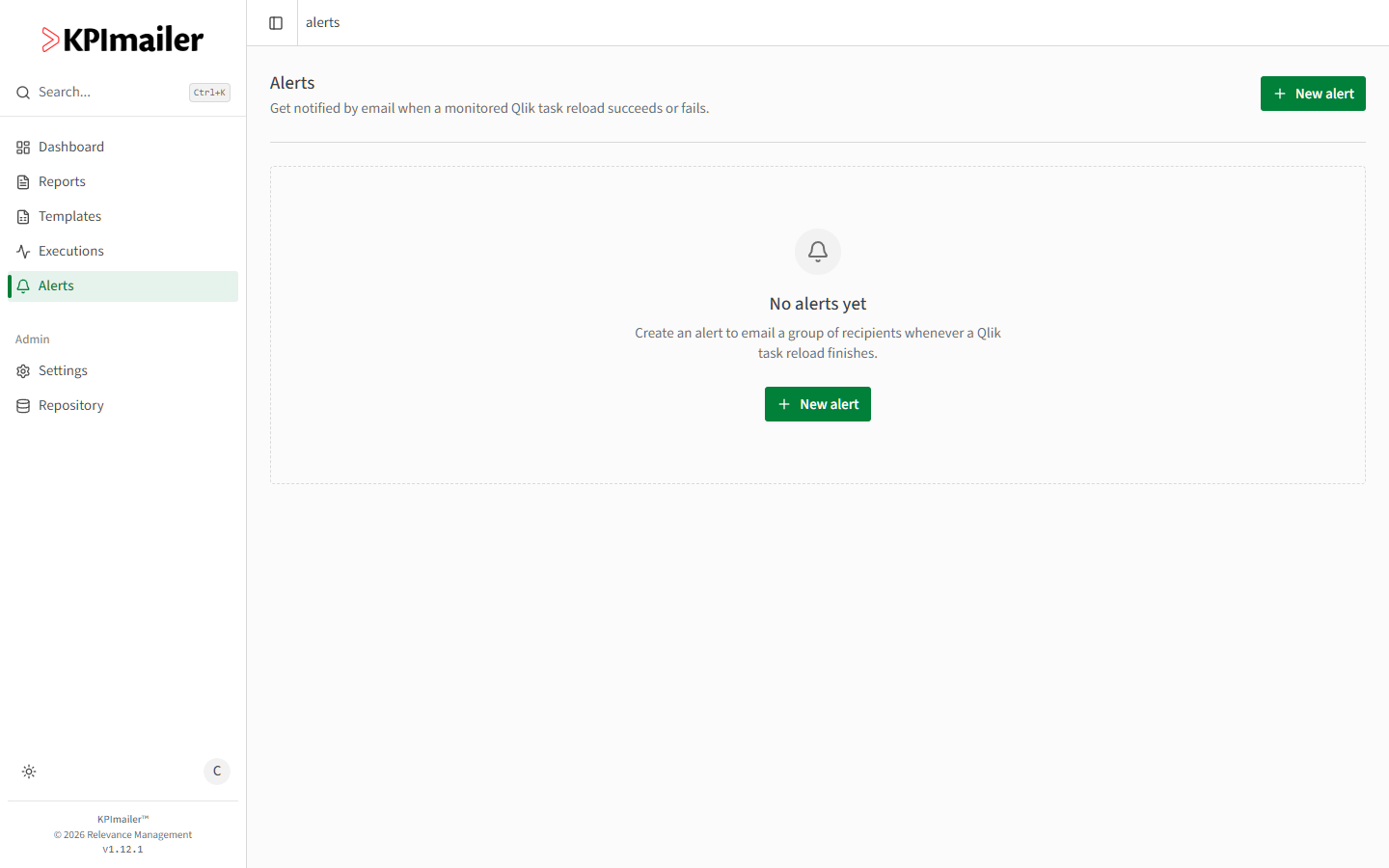
-
Choose what to watch - a Qlik task reload, a report’s execution, or a Qlik Cloud app reload - and either pick a specific one from your connected Qlik servers or reports, or turn on All tasks / All apps to watch every one at once (see Watch one or all).
-
Choose when it should fire: on success, on failure, or whenever the watched event finishes either way.
-
Optionally set a notification window to limit how often the same task or app can email you (see Notification window).
-
Pick the recipient group to notify, and give the alert a clear name.
-
Save. The alert runs automatically from then on - there’s nothing to schedule separately.
Watch one or all
Section titled “Watch one or all”When watching a Qlik task reload or a Qlik Cloud app reload, you can either pick a single task or app, or turn on All tasks / All apps to watch every one at once. An “all” alert fires for every reload, so a single alert can cover your whole environment - combine it with fire on failure to hear about any failure anywhere, without creating one alert per task.
Notification window
Section titled “Notification window”For reload alerts you can set a notification window (in minutes) to limit how often the same task or app emails you:
- Within the window, repeated reloads with the same result send at most one email.
- A change - a new failure, or a recovery after a failure - always emails you, even inside the window.
- Leave it at 0 to be emailed on every reload.
This is handy for tasks that reload frequently, or for an All tasks / All apps alert, so a burst of reloads doesn’t flood the recipients while still surfacing anything that actually changed.
Worked example
Section titled “Worked example”A nightly Qlik reload feeds the sales dashboard, and the data team wants to know immediately if it fails so they can fix it before the morning. They create an alert watching that reload task, set it to fire on failure, and point it at the Data Team recipient group. If the reload fails overnight, the group gets an email before anyone opens the dashboard.