Signing in
Covers the day-to-day sign-in screen, plus recovering a forgotten password and verifying your email address.
Signing in
Section titled “Signing in”Go to your KPImailer address and enter your email and password.
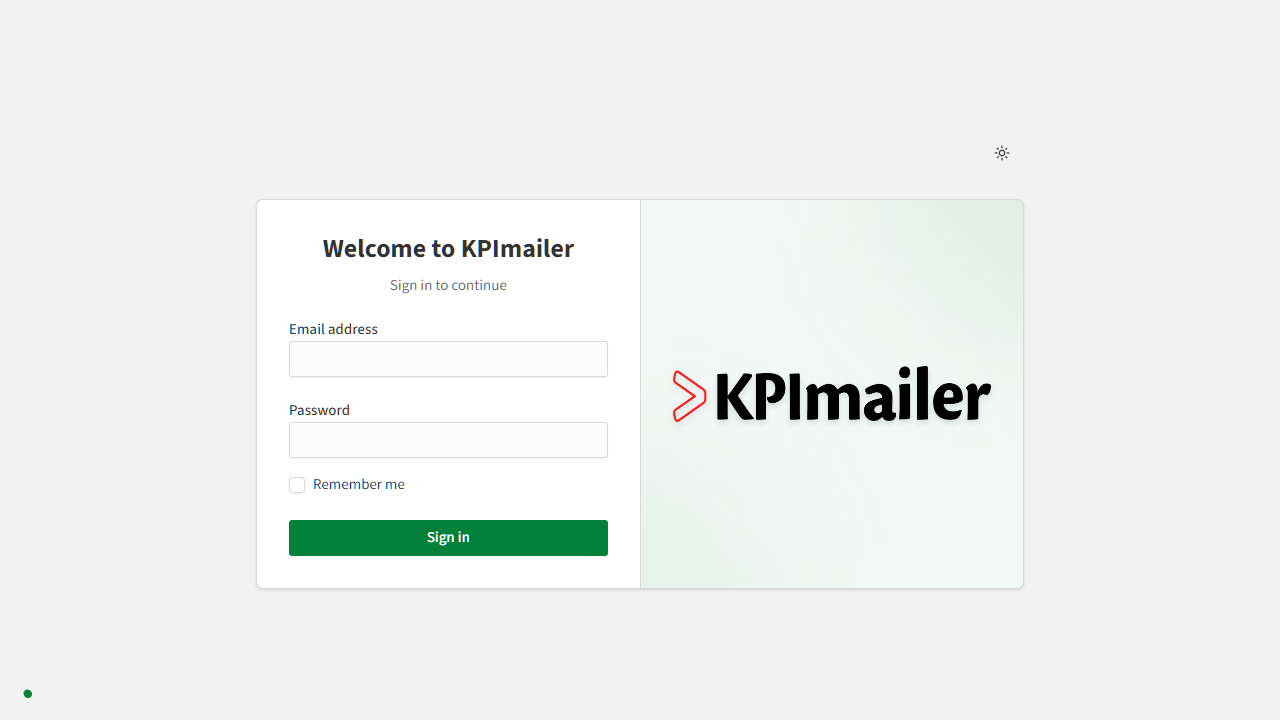
Turn on Remember me to stay signed in on that browser between visits. If your organization has two-factor authentication enabled on your account, you’ll be asked for a code after your password is accepted.
Resetting a forgotten password
Section titled “Resetting a forgotten password”From the sign-in screen, select Forgot password? to start a reset.
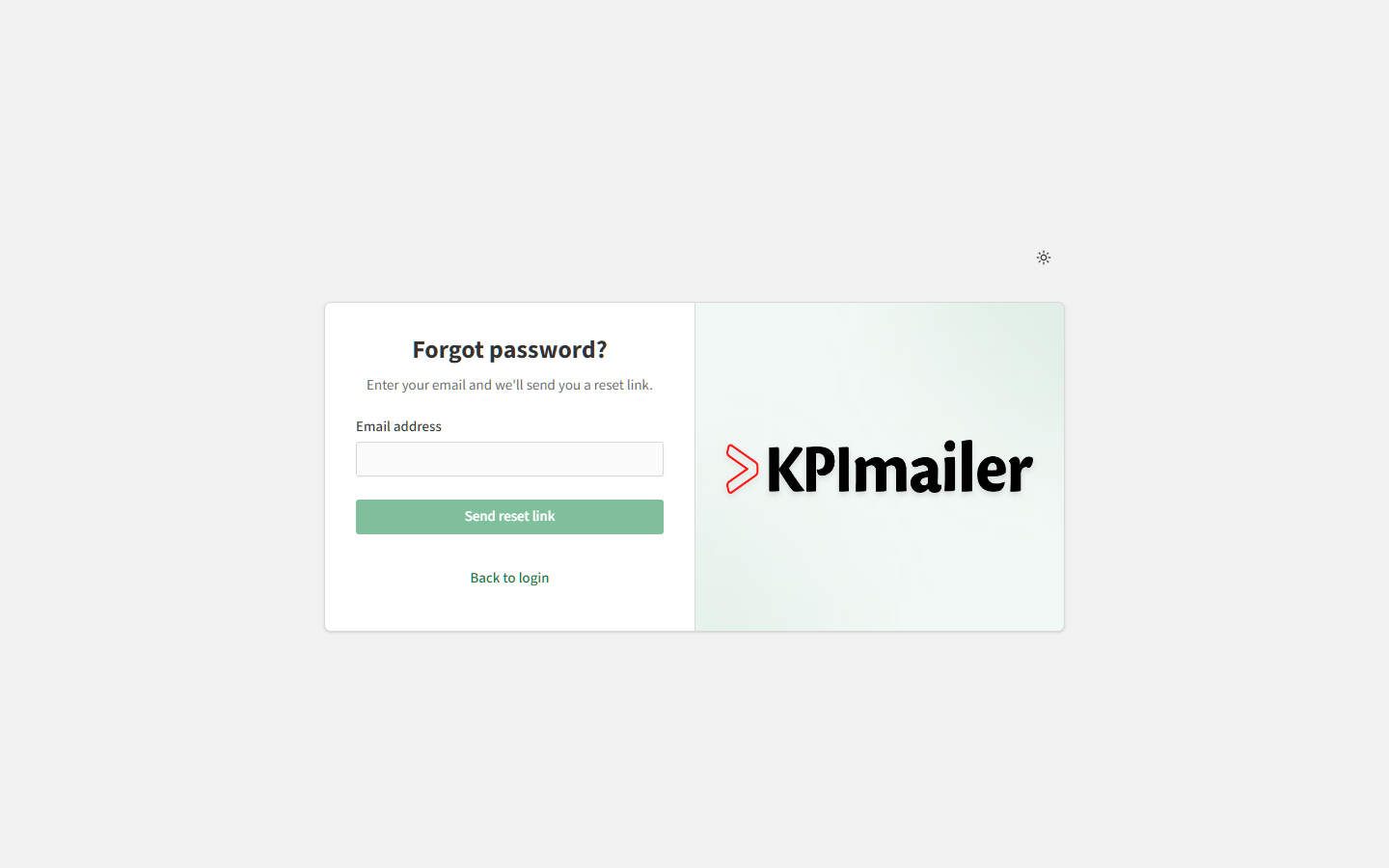
Enter the email address on your account and select Send reset link. Check your inbox for an email with a link back into KPImailer, where you’ll set a new password. Use Back to login if you remember your password after all.
Verifying your email
Section titled “Verifying your email”New accounts and changed email addresses need to be verified before they’re fully active. Look for a verification email from KPImailer and follow the link inside it - until you do, some account actions may be restricted. If the email doesn’t arrive, check your spam folder first, then ask an administrator to confirm your address is correct under Settings → Users.
Worked example
Section titled “Worked example”A new team member is set up with a login by an administrator, receives a verification email and clicks the link to confirm it, then signs in. A few weeks later they forget their password, select Forgot password?, follow the reset link from their inbox, and set a new one - no administrator involvement needed for that step.